The chart of accounts
What the chart of accounts is, how it is coded by levels, the six classes (assets, liabilities, equity, revenue, expenses and costs), group and posting accounts, and how to manage it in GoSoft.
The chart of accounts is the ordered, coded list of every account the company uses. It is the skeleton of the books: a good chart makes recording and analysis easy; a bad one complicates everything.
- Read the level-based coding of a chart of accounts.
- Tell group accounts from posting (detail) accounts.
- Add, edit and deactivate accounts in GoSoft without breaking history.
The classes
Most charts in the Americas start the same way:
| Class | Content | Normal balance |
|---|---|---|
| 1 | Assets | Debit |
| 2 | Liabilities | Credit |
| 3 | Equity | Credit |
| 4 | Revenue | Credit |
| 5 | Expenses | Debit |
| 6 | Costs | Debit |
Some countries use more classes (production costs, memorandum accounts) or a different order. GoSoft follows the coding of the chosen country.
Levels and codes
Each digit or group of digits adds detail:
| Level | Code | Account |
|---|---|---|
| Class | 1 | Assets |
| Group | 13 | Trade and other receivables |
| Account | 1301 | Advances |
| Sub-account | 130101 | To suppliers |
| Detail | 13010101 | To suppliers (posting) |
Group accounts sum their children; you do not post to them directly. In GoSoft you can only pick detail accounts (with no children) in vouchers. That way totals by level always tie out.
Good practices
- Few accounts, well used. Use subsidiary detail (people) and cost centers instead of creating accounts per customer or department.
- Clear names without odd abbreviations.
- Never delete an account with activity: deactivate it. History must remain readable.
- Follow the official chart where the country requires one.
In GoSoft, step by step
Open Financial reports → Chart of accounts. There is one tab per class: Assets, Liabilities, Equity, Revenue, Expenses and Costs.
gosoft.app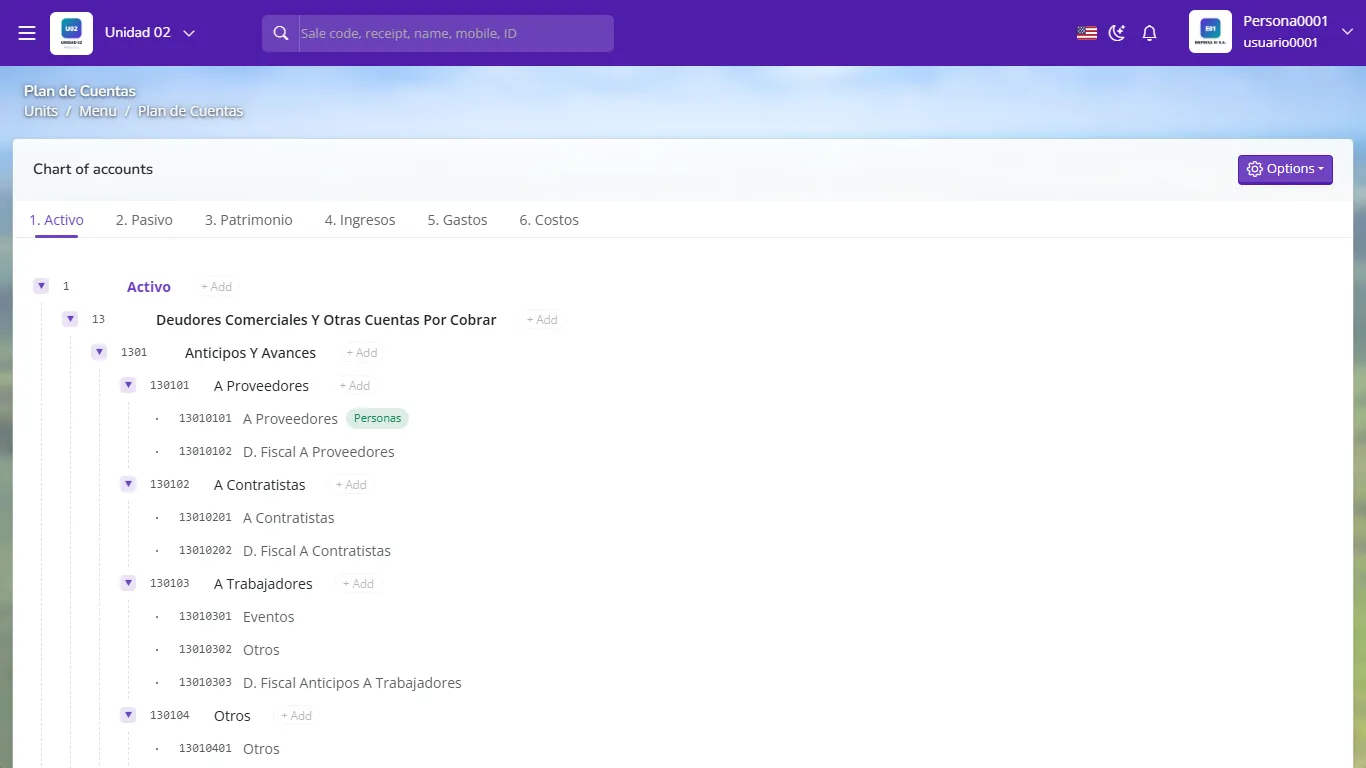
Chart of accounts as a tree, by class Expand the tree with the arrows. Accounts tagged People require a party (customer, supplier, employee) on each line.
Use + Add next to an account to create a child. GoSoft suggests the next code following the country's coding.
Click an account to rename it, set whether it carries a party or deactivate it.
Under Options you can review the country coding, download the chart as PDF or Excel for your accountant to approve and view inactive accounts.
When a module needs an account that is not configured (for example, accumulated depreciation for a new asset category), GoSoft finds or creates it in the right place of the chart. Review them so the names follow your style.
- Posting to a group account (not possible in GoSoft; in other systems it breaks level totals).
- Creating "Miscellaneous" or "Other" for everything: information is lost.
- Deleting accounts with history or reusing them for another concept.
Which class groups revenue accounts in most charts in the Americas?
Class 4.
Can you post a movement to account 13 Receivables?
No. It is a group account; postings go to detail accounts.
An account is no longer used but has prior-year activity. What do you do?
Deactivate it; never delete it.
What does the People tag on an account mean?
Every line in that account carries a party: the customer, supplier or employee.